Catch the ad rejection before the network does.
Upload your ad and pick where it will run. Preflight lists what to change for each network and quotes the rule behind every fix.
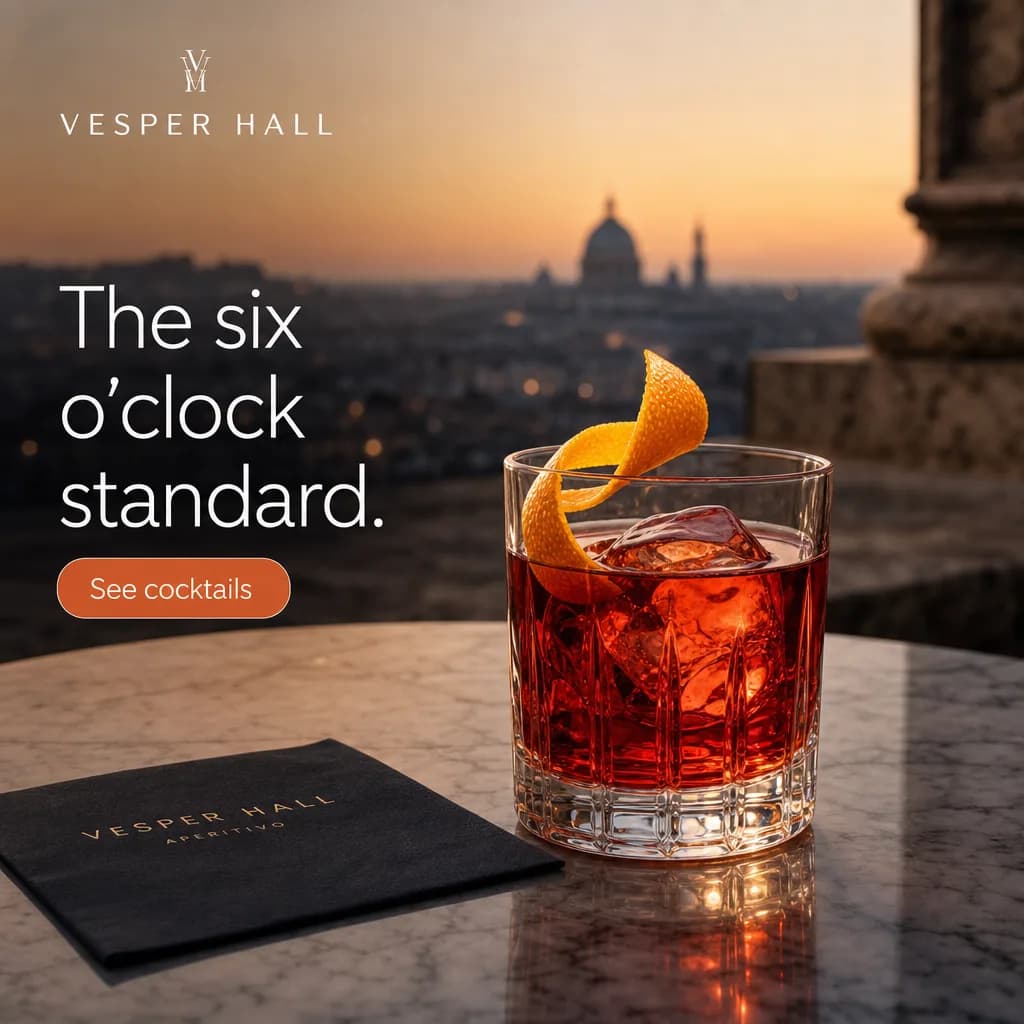
Changes needed for 1 of 4 placements
Alcohol
Fails on TrafficStars Native
Remove every drink, bottle, glass, and brand that shows alcohol.
“Images of Alcohol, Drugs, or any related paraphernalia are not permitted”
- Fail
TrafficStars · Native
Alcohol, and 1 more
- Limited
Google Ads · Responsive display, square
Alcohol ads on the Display Network
- Limited
Meta · Facebook Feed
Alcohol ads must follow local law and industry codes
- Limited
Meta · Instagram Feed
Alcohol ads must follow local law and industry codes
Rules you’d only find in the fine print.
Sample 1 of 4
Sample results for fictional brands. The network makes the final call on every ad.
This download button breaks a Google Ads rule.
Download button in an image ad
Verdict on Google Ads: Fail
Google Ads does not allow download or install buttons in image ads.
What to change
Remove the download button and its arrow.
The network’s rule
“Download or install buttons or icons in image ads”Google Ads policy: Misleading ad design (opens in a new tab)
How a check works.
Step 1: Send the ad
Upload it in the dashboard, with the placements you plan to buy.
Step 2: We check each network’s rules
We read the image against the creative rules each network publishes for those placements.
Step 3: Fix it before you submit
Each placement comes back pass, limited, fail, or needs review, with the network’s rule and the change to make.
All networks supported.
See supported networks

Check your next ad.
Upload one ad and see a result for each placement.
- Get an API key
Check every ad your customers upload, from inside your own product. We turn the API on for each organization, and its owners and admins create keys in Settings.
- Read the docs
The supported networks, what the check can and cannot see, and the API reference.
